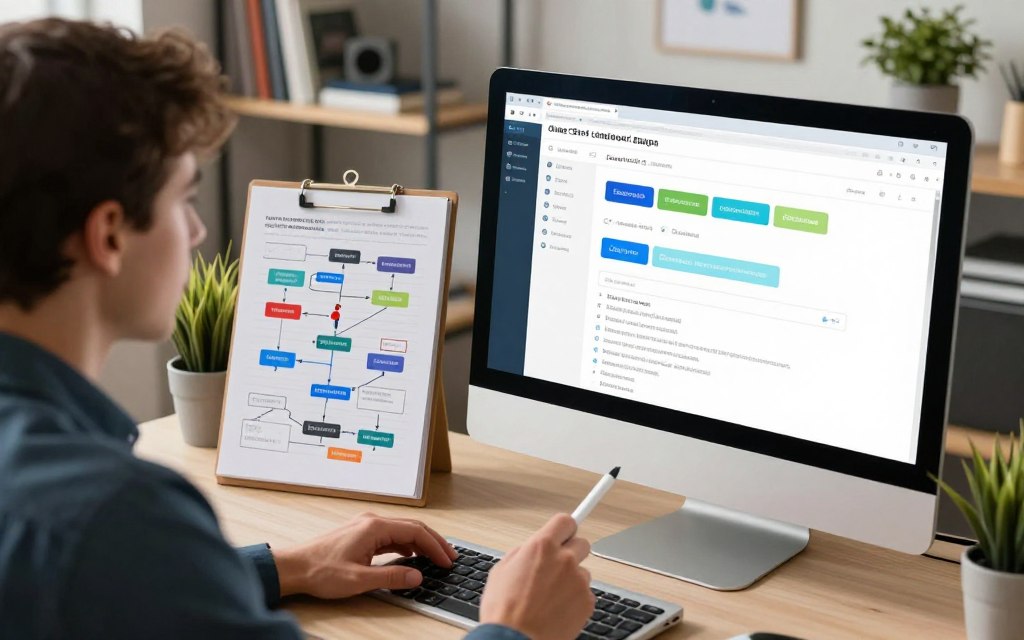

The digital world for businesses is getting more competitive. Adding a conversational agent to your WordPress site is a great way to stand out. It turns passive browsing into active, helpful conversations.
Today’s AI-powered assistants are much more than simple scripted responders. They understand the context and offer personalised support. They handle common questions, qualify leads, and boost user engagement.
This ability leads to better efficiency and a higher return on investment for your brand. By automating these initial interactions, your team can focus on more complex, valuable tasks.
Our detailed guide makes the whole process easy to follow. We’ll cover everything from choosing the right plugin to launching your own automated helper.
Why Add a Chatbot to Your WordPress Site?
Adding a chatbot to your WordPress site is now essential for businesses. The digital world needs constant interaction. Visitors expect quick, helpful responses. A chatbot provides this right on your site.
It changes passive browsing into active chats. This is key for better user experience and real business gains.
The Growing Importance of Customer Support Automation
Customer needs have changed. People want answers now, not later. Customer support automation is vital here.
Chatbots offer instant, automated help. They handle simple questions anytime. This frees your team for more complex tasks.
- 24/7 Availability: Your site can help visitors any time, day or night. This captures leads and stops frustration.
- Instant Answers: Chatbots quickly answer common questions. This cuts down wait times compared to email or phone.
- Reduced Support Burden: Automating simple questions lowers support ticket volume. This lets your team focus on important tasks.
- Higher Satisfaction Rates: Users often prefer quick chatbot answers for simple issues. This boosts customer satisfaction.
These benefits lead to real business wins. Companies see more engagement, higher lead conversion rates, and better support resource use. This investment boosts scalability and customer loyalty.
Your website becomes a proactive service channel. It’s ready to help visitors the moment they arrive.
Understanding the Basics: What is a WordPress Chatbot?
Chatbots have grown from simple scripts to smart AI helpers. A WordPress chatbot is a special tool for your website. It works like a virtual team member, chatting with visitors and helping them.
Defining Chatbots: From Simple Scripts to AI Assistants
Not all chatbots are the same. Basic ones follow rules and give set answers. They’re good for common questions.
But, AI-driven assistants are more advanced. They use Natural Language Processing (NLP) and large language models (LLMs). This lets them understand what visitors mean, even if they don’t say it exactly.
How Chatbots Integrate and Function on a WordPress Site
Setting up a chatbot is easy. You just install a plugin. This adds a chat widget to your site’s pages.
The chatbot works all the time. It can say hello, ask questions, suggest products, and pass on tough issues to people. A good AI chatbot gets better with time, helping your site more.
This means the AI chatbot is a key part of your site. It works on its own, making your site better and helping your business grow.
Preliminary Considerations Before You Build
Building a good WordPress chatbot starts with careful planning before you begin. Skipping this step can lead to a chatbot that doesn’t meet user needs or business goals. Taking the time to plan ensures your chatbot solves real problems and gives a good return on investment.
Defining Your Chatbot’s Primary Purpose and Goals
First, decide what you want your chatbot to do. A clear goal helps avoid making it do too many things at once. Common goals include automating customer service, qualifying leads, or sending instant order updates.
For an e-commerce site, you might aim to reduce cart abandonment by offering live help. A service-based business could use it to qualify leads, gather contact details, and project scope before handing it over to a human. Knowing your goal guides every decision, from the questions it asks to the platforms it connects with.
Identifying Your Target Audience and Their Needs
Your chatbot needs to talk to your visitors in their own language. Look at your site analytics and customer service logs to find common pain points. What questions do people keep asking about your products, shipping, or booking process?
Knowing these needs helps you create helpful, not robotic, conversations. A site for tech-savvy users might use detailed, technical responses. A brand focused on consumers should keep things simple and fast. Understanding your audience is crucial for creating a useful chatbot.
Assessing Your Technical Resources and Budget
Be realistic about what you can build and maintain. Your choice of chatbot solution depends on your technical skills and budget. Many WordPress chatbot plugins offer free versions with paid upgrades for advanced AI features.
Think about ongoing API costs for natural language processing. Also, check if your hosting can handle resource-intensive chatbot solutions. The table below shows common goals and the resources needed to achieve them.
| Primary Goal | Key Functions | Typical Resource Considerations |
|---|---|---|
| Automate FAQ Support | Answer common questions instantly, deflect tickets. | Basic chatbot plugin, time to script answers, knowledge base integration. |
| Qualify Leads & Boost Lead Generation | Ask screening questions, capture contact details, score prospects. | Plugin with form capture, CRM integration, potential for premium AI features. |
| Reduce Cart Abandonment | Offer discounts, answer last-minute shipping queries. | E-commerce plugin integration, real-time inventory sync, possible live chat handoff. |
If your needs are simple, a basic plugin might work. For complex AI interactions, plan for higher costs. Remember, good planning is key, like when building a chatbot for Discord. A thorough assessment now saves you from costly changes later.
Choosing the Right Chatbot Platform or Plugin
With your goals and audience in mind, it’s time to pick the right tool. The choice of a WordPress chatbot plugin is key. It affects your bot’s abilities, how easy it is to manage, and the cost over time.

Overview of Popular WordPress Chatbot Solutions
The market has many options, from simple live chats to advanced AI bots. Let’s look at some well-known ones.
Tidio: Live Chat and AI Bots
Tidio is a hybrid platform that stands out. It has a strong live chat system and powerful AI chatbot builders. It’s great for sites that need quick automated answers and human help when needed. Its visual flow builder makes creating chat paths easy for users.
WP-Chatbot by MobileMonkey
This plugin is perfect for Facebook Messenger integration. It lets you add a Messenger chat widget to your WordPress site. It keeps conversations going between your site and Facebook Page, making customer communication easy. It’s ideal for marketing efforts.
ChatBot for WordPress (collect.chat)
ChatBot (by collect.chat) is known for its easy-to-use, drag-and-drop builder. It helps you create complex chat flows without coding. It’s great for making conversational forms and surveys, perfect for lead generation and feedback.
Other notable options include HubSpot’s free CRM-integrated bot, Botpress for advanced workflows, and StoreAgent Chat for WooCommerce stores.
Key Selection Criteria: Features, Pricing, and Ease of Use
When choosing, focus on these key areas.
- Essential Features & Compatibility: Check if it has the features you need. Make sure it works with your theme, other plugins, and specific needs like WooCommerce or multilingual support.
- AI Sophistication & Customisation: Look at the AI level. Do you need simple menus, NLP, or advanced LLM? Also, see how much you can change the chat widget’s look and chat logic.
- Pricing Models & Cost Control: Examine the pricing. Many offer free versions with paid upgrades for more features or chats. Know what causes costs to go up to avoid surprises.
- Ease of Use & Support: Think about how easy it is to use. A visual builder is best for most. Make sure the provider has good documentation, tutorials, and support for setup and issues.
By weighing these points, you’ll find the best WordPress chatbot plugin for your needs and budget.
How to Create a Chatbot in WordPress: A Step-by-Step Guide
First, pick your platform. Then, start building your WordPress chatbot. This guide will help you set up in three easy steps. Whether you use a plugin like HubSpot or a platform like Botpress, these steps are the same.
Creating a chatbot is exciting. Follow these steps to set up smoothly. This will get you to the fun part—building your chatbot—fast.
Step 1: Installing and Activating Your Chosen Chatbot Plugin
Start in your WordPress admin area. Go to Plugins > Add New. Type the name of your chosen plugin in the search bar.
Find the plugin, click Install Now. After it’s installed, click Activate. This lets the plugin work and adds it to your dashboard.
Here’s how it works for popular options:
- HubSpot WordPress Plugin: Installs and adds a “HubSpot” menu for connecting your account.
- ChatBot.com Plugin: Installation provides a direct link to connect your ChatBot account.
- Botpress: While often self-hosted, its integration typically involves installing a connector plugin to link your WordPress site to your Botpress project.
Step 2: Connecting to the Chatbot Service and Creating an Account
Most chatbots are SaaS. So, after activating the plugin, you need to link your site to the service.
Look for a setup wizard or settings page under the plugin’s menu. You’ll need to log in or create a new account with the service provider. This account is where your chatbot’s smarts and data will live.
The API key is key to this connection. It’s a secure code that lets your site talk to the chatbot service. The plugin dashboard will have a field for this key, or it might connect automatically through “OAuth.” Always keep your API keys safe.
Step 3: Accessing the Chatbot Builder Dashboard
With your site connected, it’s time to start designing. You’ll access the chatbot builder dashboard from your WordPress admin panel.
This dashboard is your control centre. Here, you can design conversations, set up the chat widget, and more. Getting to know this layout is your last step before you start making your chatbot.
You’ve done the technical setup. Your WordPress site is ready to use a powerful chatbot service. Now, you’re ready to start building your automated assistant.
Configuring Your Chatbot’s Core Settings
Setting up your chatbot’s core settings is key to its success. It’s more than just installing it. It’s about making it think, respond, and guide users in a way that’s unique to your site. With the right settings, your chatbot can become a valuable asset.
Setting Up Welcome Messages and Initial Greetings
Your chatbot’s first message is crucial. It should be friendly, brief, and clear about its purpose. Instead of saying “Hello,” try something like, “Hi there! I’m [Bot Name], here to help you find answers or connect you with our team.”
Most platforms let you change this message in the dashboard. You can add a simple question to engage visitors right away. For example, “Are you looking for product information, support, or something else?” This helps direct the conversational flow and understand what the user needs.
Building Conversational Flows and Decision Trees
This is where your chatbot’s smarts really shine. A conversational flow is a series of interactions based on what the user says. Tools like ChatBot and Botpress use visual builders to make this easy.
Imagine designing a flowchart. Each answer leads to a new path. This structure keeps conversations on track and focused. Visual builders make it easy to see the whole conversation path.
Creating Responses for Frequently Asked Questions
Start by answering common questions. Look at your support tickets or analytics for the most asked questions. Then, write clear, helpful answers for each.
In your flow builder, create a block for FAQs. Use keywords to find the right answer quickly. For example, if someone asks about delivery time, your bot can give your shipping policy. Keeping these answers in a special section makes your bot efficient and user-friendly.
Setting Up Paths for Sales and Support Queries
Good chatbots know when to help with sales or support. Create different paths for each. A sales path might ask about product interests and then offer a link to a pricing page or a demo booking.
A support path could first try to solve the issue with a knowledge base article. If that doesn’t work, it can ask for contact details and open a support ticket. This way, users get the right help fast, improving satisfaction and conversion rates.
Configuring Triggers and Default Actions
Triggers decide when and how your chatbot acts. They can be based on time on page, exit intent, or visiting a specific URL. For example, you can make the chat widget appear after 30 seconds on a pricing page.
It’s also important to set a default action or fallback response. This is what users see when the bot doesn’t understand. A good fallback might say, “I didn’t quite get that. Could you rephrase, or would you like to speak to a human agent?” This keeps the conversation going and keeps users happy.
By carefully setting up these core settings, you create a solid foundation for your chatbot. The effort in creating precise conversational flows and triggers pays off in automated, effective customer interactions.
Designing and Customising the Chatbot Interface
A chatbot’s success isn’t just about what it can do. How it looks and acts is key. This part of chatbot customisation makes it blend with your brand. It affects how users feel and trust it.
Modifying the Chat Widget’s Appearance and Placement
Where you put the chat widget is important. It should be seen but not get in the way. Most tools, like those from StoreAgent, start in a corner.
Think about how users move through your site. A floating button might be good for help. A wide bar at the top could highlight a special offer. Make sure it looks right on phones, too, where space is tight.
Personalising Chatbot Avatar and Brand Colours
Give your chatbot a personality. Use your logo or a mascot. Naming it, like “Acme Support Bot,” makes it feel more real.
Match the chatbot’s colours to your brand. Use your brand colours for the header, bubbles, and buttons. As HubSpot shows, this makes the chatbot feel like part of your site.
Setting Operating Hours and Offline Behaviour
Not all businesses need chat 24/7. Set hours to manage what users expect. When it’s on, it can chat with users.
What to do when it’s off is important. A good choice is to show a contact form or email prompt. This lets visitors still get in touch, turning a missed chance into a lead.
| Customisation Aspect | Typical Options | Primary UX Impact |
|---|---|---|
| Widget Placement | Bottom-left/right corner, inline within page, top bar | Visibility & accessibility without obstructing content |
| Colour Scheme | Header colour, button colour, chat bubble colour | Brand reinforcement & visual coherence |
| Operating Schedule | Set days/hours, timezone detection, offline message | Manages user expectations & provides continuity |
By fine-tuning these details, you go beyond basic chatbot features. You create a polished, on-brand assistant. This makes visitors more likely to trust and use it, building a strong visual and operational base for your WordPress chatbot.
Integrating Your Chatbot with Key Tools and Services
Chatbot integration turns a simple site widget into a central hub. It captures and routes valuable customer data across your organisation. By connecting your assistant to external platforms, you create automated workflows. This eliminates manual tasks and unlocks powerful new functionalities.
This strategic connectivity is key for moving beyond basic FAQ answering. It drives tangible business growth.

Connecting to Email Marketing Services like Mailchimp
One of the most common and valuable integrations links your chatbot to an email marketing service. When a visitor provides their email address during a conversation, your bot can instantly add them to a specific Mailchimp list. This automates lead capture for nurturing campaigns.
You can set triggers based on user intent. For example, if someone asks about a pricing guide, the chatbot can request their email. It then subscribes them to a relevant drip campaign. This seamless handoff turns casual inquiries into qualified marketing leads without any manual data entry.
Syncing with CRM Systems such as HubSpot or Salesforce
For sales teams, syncing chatbot data with a Customer Relationship Management (CRM) system is a game-changer. Contact details, conversation history, and even perceived lead score can be pushed directly into a record in HubSpot or Salesforce.
This gives your sales reps immediate context before they make a follow-up call. As one industry analyst noted:
“The most effective sales chatbots are those that act as a front-line data gatherer for the CRM. They qualify interest in real-time and pass a warm lead directly to a human, complete with a full transcript.”
Platforms like HubSpot often offer native CRM integration, making setup straightforward. This connection ensures no lead falls through the cracks.
Linking to Your Help Desk or Knowledge Base
Integrations with support tools greatly enhance your chatbot’s problem-solving ability. If a query is too complex, the bot can automatically create a ticket in a system like Zendesk. It includes the entire chat history for the support agent.
Furthermore, you can train your chatbot’s AI on your proprietary help articles. By linking it to a knowledge base plugin like Heroic KB, the assistant learns from your specific content. This allows it to provide accurate, in-depth answers about your products or services. It deflects routine support tickets.
| Integration Type | Primary Benefit | Example Workflow | Common Platform |
|---|---|---|---|
| Email Marketing | Automated Lead Nurturing | Capture email → Add to segmented list → Trigger welcome series | Mailchimp, ConvertKit |
| CRM System | Streamlined Sales Follow-up | Qualify visitor → Create contact record → Notify sales rep | HubSpot, Salesforce |
| Help Desk / Knowledge Base | Enhanced Support & Deflection | Answer from KB → Escalate complex issue → Create support ticket | Zendesk, Heroic KB |
Implementing these chatbot integration points creates a cohesive technology stack. Your chatbot stops being a siloed tool. It starts acting as an intelligent switchboard for your customer data. This drives efficiency in marketing, sales, and support operations.
Testing, Launching, and Analysing Performance
Your chatbot’s success is shown in testing, launching, and analysing its use. This stage turns your bot into a real tool that gets better with time.
Conducting Thorough Pre-Launch Tests and Simulations
Chatbot testing is crucial. Before it goes live, test it with many user conversations. This finds any gaps in its logic and knowledge.
Use your platform’s emulator to test it. Ask questions in different ways, including typos and slang. Make sure every path leads to a good outcome.
This step finds any problems before real users see them. It’s better to fix these in a test than to upset your first visitors.
Going Live: Activating the Chatbot on Your Site
After testing, making it live is easy. Find the publish button in your plugin dashboard. This makes your chatbot live on your WordPress site.
Make sure the chat widget shows up where you want. Most plugins let you choose when to show it, like on all pages or after 30 seconds.
Check your site one last time. Make sure the widget works, the avatar is there, and the greeting is right. Your chatbot is now ready for users.
Monitoring Conversations and Using Analytics for Improvement
Launching is just the start. Use data to make your bot better. Look at your analytics dashboard often.
Chat logs are full of useful info. They show what users ask, where the bot does well, and where it fails. This helps you make it better.
Tracking Resolution Rates and User Satisfaction
Watch the conversation resolution rate. This shows how often the bot solves problems without help.
Also, check user satisfaction scores if your plugin has surveys. A high score means your bot is working well. A low score means you need to improve.
Identifying Common Questions to Refine Flows
Analytics will show what questions users ask most. If many ask about “return policy” but your bot is hard to use, it’s time to improve.
Add these questions as new intents or make easier paths to answer them. This makes things easier for users and improves their experience.
The table below shows important things to check after you launch:
| Metric | What It Measures | Goal for Improvement |
|---|---|---|
| Resolution Rate | Percentage of chats resolved by the bot alone. | Increase over time, aiming for 70%+. |
| User Satisfaction (CSAT) | Average score from post-chat feedback surveys. | Maintain a score above 4.0 / 5.0. |
| Top Unresolved Questions | The most common queries the bot failed to answer. | Add answers for these to knowledge base or flows. |
| Fallback to Human Rate | How often the bot had to hand off to a live agent. | Decrease by improving bot understanding and responses. |
| Engagement Time | Average duration of a chatbot conversation. | Optimise for efficiency; shorter times can indicate good resolution. |
By regularly checking these metrics, you can make your WordPress chatbot better. This cycle of checking and improving keeps your chatbot useful and adaptable for your audience.
Conclusion
Building a chatbot for your WordPress site is straightforward. This guide shows you how, from picking a good plugin to launching your chatbot. Each step makes your website more interactive.
A WordPress chatbot is very useful. It offers quick, automated help, catches leads, and answers simple questions anytime. This frees up your team to handle more complex issues.
Success starts with careful planning. Know what your chatbot will do, pick the right tool, and keep checking how it’s doing. This way, your chatbot will grow with your audience.
Getting a chatbot is a smart move for your site’s future. It makes your site better, helps your business grow, and turns visits into chances to connect. Start making your WordPress chatbot today to see these benefits for yourself.
FAQ
What are the main business benefits of adding a chatbot to my WordPress site?
A chatbot provides instant, 24/7 customer support. This meets modern user expectations. It leads to more engagement and higher lead conversion rates.
It also makes operations more efficient by automating repetitive queries. Businesses often see a drop in support ticket volume and better customer satisfaction scores.
What is the difference between a rule-based chatbot and an AI-powered assistant?
A rule-based chatbot follows set instructions and responds to specific keywords or button clicks. An AI-powered assistant, like those from Botpress or StoreAgent Chat, understands natural language and context.
This allows for more human-like conversations and handling a wider range of queries.
How do I choose the right chatbot plugin for my WordPress site?
Choose based on your goals, technical resources, and budget. Look for essential features like visual builders or AI capabilities. Also, consider pricing models and ease of use.
For WooCommerce sites, StoreAgent Chat might be ideal. For complex workflows, Botpress could be better. Make sure it integrates well with your CRM or email marketing tools.
Is it technically difficult to create and install a chatbot on WordPress?
Modern platforms have made it easy. With Tidio, ChatBot, or HubSpot, just install a plugin, connect with an API key, and use a visual builder. The setup is simple, but advanced AI agents might need more tech work.
What should I define in the planning stage before building my chatbot?
Clear goals are key. Decide if you want to automate FAQs, qualify leads, or reduce cart abandonment. Analyse support tickets to understand your audience’s needs.
Also, consider your technical resources and budget. This includes any subscription costs or AI API fees for a sustainable chatbot.
Can I customise how my chatbot looks and when it appears on my site?
Absolutely. Design and customise the chat widget to fit your site. You can change its placement, appearance, and colours. Personalise its avatar and name, and set its operating hours.
You can also control its offline behaviour, like displaying a contact form. Tailor its visibility for desktop versus mobile users.
How can I make my chatbot more powerful through integrations?
Integrations boost your chatbot’s value. Connect it to email marketing services like Mailchimp to nurture leads. Sync with CRM systems like HubSpot or Salesforce for sales follow-ups.
Link to your help desk for ticket creation and a knowledge base for training the AI. This leads to more accurate answers.
What steps are involved in testing and launching the chatbot live?
Test thoroughly before launch by simulating conversations. Once ready, activate the chatbot on your live site. Monitor conversations and track key metrics like resolution rates.
Use analytics to identify areas for improvement. This data-driven approach is crucial for refining your chatbot.
Are there any ongoing costs associated with running a WordPress chatbot?
Costs vary by platform. Many offer a freemium model with basic features for free, like HubSpot. Advanced features or high conversation volumes may require a monthly fee, as seen with Tidio, ChatBot, or Botpress.
Some AI-powered solutions may charge based on API usage, like OpenAI. Always check the pricing tier of your chosen solution.


 By
By